

Shows
The Shows tab
Every show you follow, as a grid of pictures. With more than one source, the shows are grouped under the source they come from (This Device, or a server’s name). A source that doesn’t answer says Can’t be reached right now.
- + (Add a Show) follows a show by its feed address.
- Sort (in the toolbar’s menu): Title, New Episodes First or Recently Followed. The app remembers your choice.
- Pull down to check for new episodes.
The server switch on New Episodes also decides which sources the Shows tab shows.
A show’s page
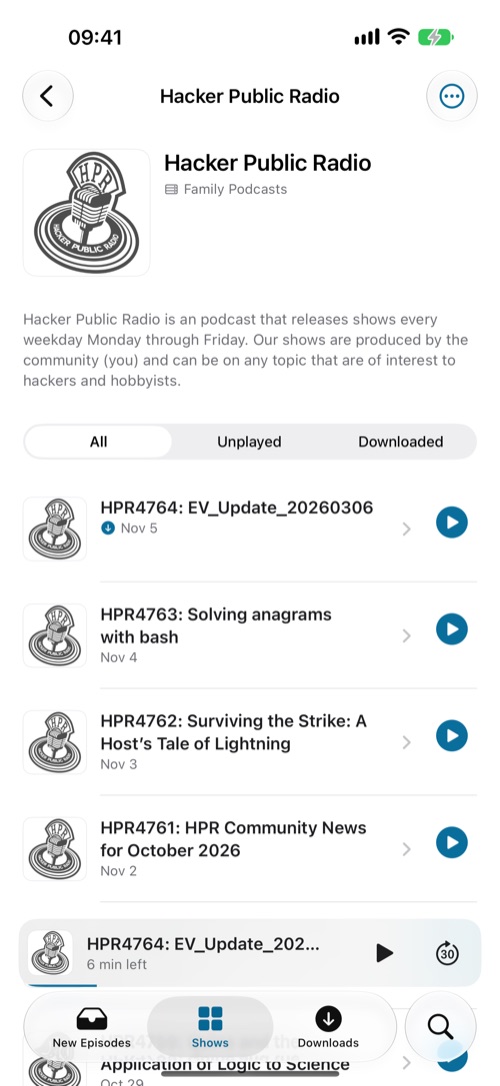
Tap a show to open it: the picture, the title, the author, the source, the show’s description, and its episodes, newest first. The picker above the episodes filters them: All, Unplayed or Downloaded. Pull down to refresh just this show.
Where Discover uses an own.audio catalog, the bottom of the page has Similar Shows, a row of shows like this one that you don’t follow yet (see Discover).
The ⋯ (More) menu at the top has:
| Item | What it does |
|---|---|
| Show Settings | This show’s own settings, below. |
| Website | The show’s website, when the feed gives one. |
| Share Feed | Shares the feed address, to send to someone or open in another app. |
| Unfollow | Only for shows followed on this iPhone. Asks first; the show’s episodes, positions, downloads and Up Next entries on this iPhone are removed. |
Shows that come from an own.audio or Audiobookshelf server can’t be unfollowed from the app; manage them on the server. (On Audiobookshelf, removing a show would remove it for everyone on the server.)
Show Settings
Changes take effect when you tap Done; Cancel leaves them as they were.
| Setting | Choices | Default | What it does |
|---|---|---|---|
| Show in New Episodes | on / off | on | Off: the show’s new episodes don’t appear in New Episodes. |
| Add New Episodes to Up Next | on / off | off | New episodes go to the end of Up Next as they arrive. Only episodes that come out after you turn it on; older ones aren’t added. |
| Skip the Intro | Off, 10, 15, 20, 30, 45, 60, 90, 120 s | Off | An episode you start from the beginning starts this many seconds in. |
| Speed | As in Settings, 0.75× to 2× | As in Settings | A speed of its own for this show. Otherwise episodes start at the speed in Settings. |
Under Downloads:
| Setting | Choices | Default | What it does |
|---|---|---|---|
| Download New Episodes | Off, Newest 1, 3, 5, 10 | Off | Keeps the newest unplayed episodes downloaded, by themselves. Whether this waits for Wi-Fi is decided by Download on Wi-Fi Only in Settings (not on a Mac, which has no mobile data). |
| Delete When Played | on / off | off | A downloaded episode of this show is deleted once you have played it. |
| Keep at Most | No Limit, 1, 3, 5, 10 Episodes | No Limit | No more than this many of the show’s episodes on the iPhone; the oldest go first. |
The episode you are listening to is never deleted by these rules. Downloads that a rule starts by itself are left to iOS to schedule, so they often happen overnight, on Wi-Fi and power.