

Discover and search
The Discover tab is the magnifying glass. Before you type anything, it shows ways to find new shows; once you type, it searches.
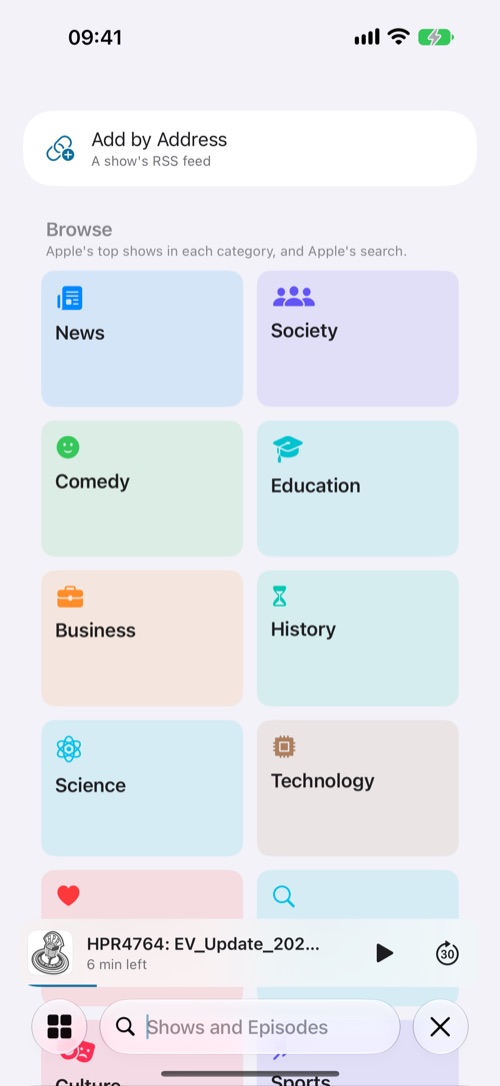
Before you search
- Add by Address: follow a show by its RSS feed address (see Getting started).
- More Like Your Shows: shows similar to the ones you followed most recently, each with Because you follow and the show that brought it up. It is built from what you follow, not from what you play. This row appears only when Discover uses an own.audio catalog.
- Browse: a grid of categories (News, Society, Comedy, Education, and so on). Tap one for its shows; more load as you scroll.
Where the shows come from
- With no own.audio server, or one without a catalog: Browse shows Apple’s top shows in each category, and search uses Apple’s podcast search. The header says Apple’s top shows in each category, and Apple’s search. Only your search words are sent to Apple.
- With an own.audio server that has a podcast catalog: Browse, search, More Like Your Shows and Similar Shows all come from that server, and nothing you search for leaves it. The header names the server. If you have several own.audio servers, the first that answers with a catalog is used.
Discover needs the network. Offline it says so, and searching still finds your own shows.
Searching
Type in Shows and Episodes. Results appear as you type, in up to three groups:
- Your Shows: shows you already follow whose title or author matches.
- Your Episodes: episodes whose title matches, from New Episodes, your downloads and Up Next. These are found offline too.
- From Apple Podcasts or your own.audio server: new shows to follow.
Following a show you found
Tap a result to see its picture, author and category, then tap Follow. If you have a server that takes new shows, choose where under Follow On first. A show you already follow says Following — Open the Show. Similar Shows appear here too, where the catalog has them.