

Getting started
The first screen
Until you follow a show or add a server, the app opens on a welcome screen.
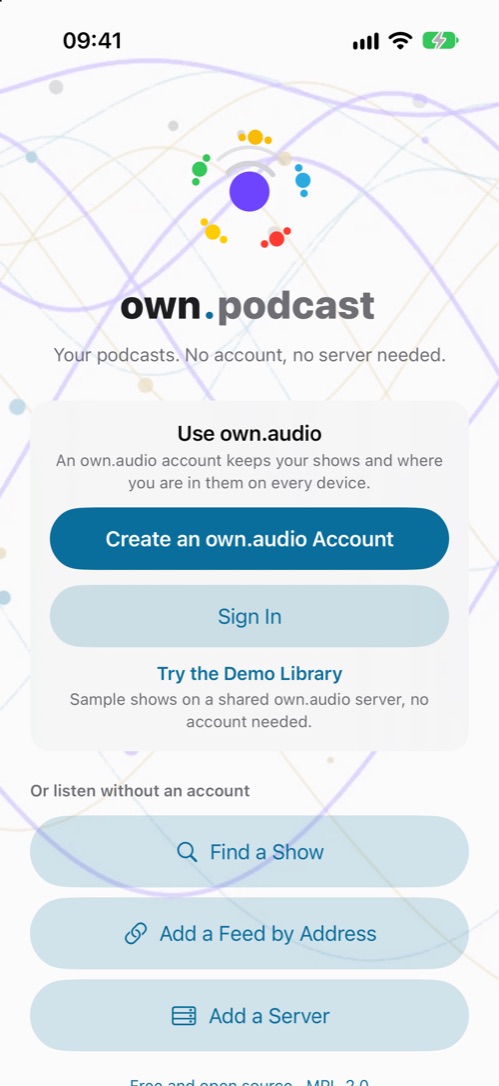
At the top, Use own.audio: an own.audio account keeps your shows, and where you are in them, on every device.
- Create an own.audio Account opens a sheet with Continue with Apple and Continue with Google at the top: either makes the account on first use. Or fill in Your Name, Email and a Password of at least 12 characters (a few words are fine), then Create Account. The app signs in to the new account straight away. own.audio emails you a link to confirm the address.
- Sign In opens the same sheet for an account you already have: Apple, Google, or your Email and Password.
- Try the Demo Library signs in to a shared own.audio server with sample shows, with no account needed.
Both sheets show Server: own.audio and can’t be pointed anywhere else; for another own.audio server, use Add a Server.
Under Or listen without an account:
- Find a Show opens Discover: browse categories or search by name.
- Add a Feed by Address follows a show by its RSS feed address.
- Add a Server adds an own.audio, Audiobookshelf or gPodder sync account.
None of them is required before the others. Most people start with Find a Show.
Once something is there, the app opens on its four tabs: New Episodes, Shows, Downloads and Discover (the magnifying glass).
Follow a show by searching
- Tap Find a Show (or the Discover tab later on).
- Type the show’s name in the search field, Shows and Episodes.
- Tap the show in the results, then tap Follow.
After following, the button changes to Following — Open the Show. The show’s newest episodes appear in New Episodes from then on.
Follow a show by its feed address
Every podcast publishes an RSS feed. If you have its address (often a link called “RSS” on the show’s website):
- Tap Add a Feed by Address on the welcome screen, Add by Address at the top of Discover, or + (Add a Show) on the Shows tab.
- Paste the address under Feed Address, for example
https://example.com/feed.xml. - Tap Follow.
You can leave out https://; the app adds it. Addresses that start with feed://, podcast:// or pcast:// work too.
Links from web pages and other apps
When you tap a feed:// or podcast:// link in Safari or another app, own.podcast opens with Add a Show already filled in. Check the address and tap Follow.
Where the show is followed
With no server, every show is followed on This Device. If you have added a server that takes new shows (an Audiobookshelf account that may upload), a Follow On picker appears, so you can choose between this device and that server. See Servers and sync.
Add a server
You only need this if you run a server or have an account on one.
- Tap Add a Server on the welcome screen, or Settings → Add a Server later.
- Leave Kind on Automatic, or pick own.audio, Audiobookshelf or gPodder sync. With Automatic the app finds out which one answers at the address.
- Type the server’s address, your Email or User Name, and your Password.
- Tap Add.
For own.audio’s hosted service, set Kind to own.audio and type just own.audio as the address. A home server’s address can be typed without https://; the app tries HTTPS first and then plain HTTP. If the own.audio server accepts them, Continue with Apple and Continue with Google buttons appear under the form; use the account you use on that server. If your account has two-factor sign-in, the form asks for the Two-Factor Code from your authenticator app, then Verify.
Servers and sync explains what each kind of server adds.
Try the public demo
To see what a server adds without an account, tap Try the Demo Library on the welcome screen. It signs in to a shared own.audio server with sample shows. You can remove it again in Settings at any time.