

The player
The mini player
While an episode is loaded, a bar above the tabs shows its picture, title and time left, with play/pause and skip forward. A thin line along its bottom shows how far you are. Tap the bar to open the full player.
When you open the app again after it was closed, the last episode is back in the mini player, paused where you left it.
The full player
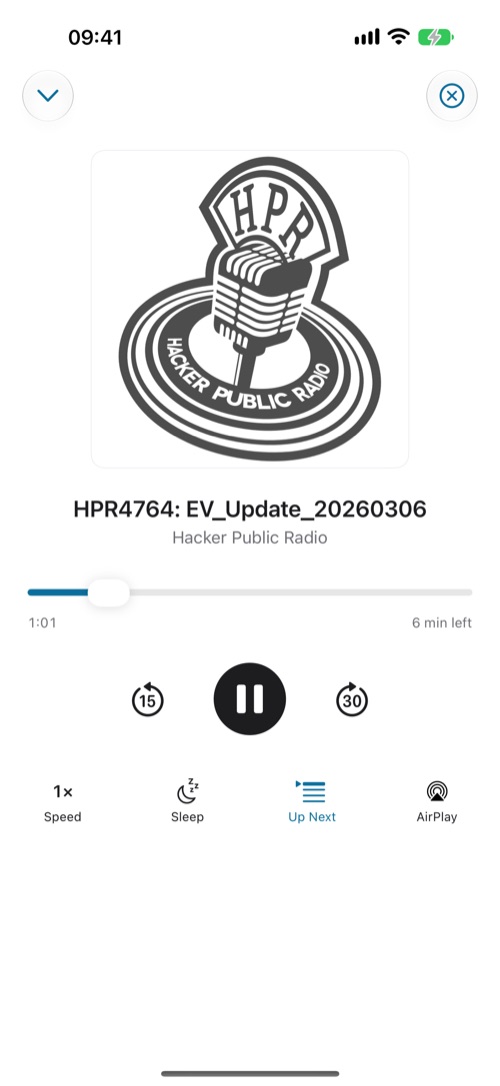
From the top:
- The down arrow closes the player; the episode keeps playing.
- The × button (Stop) stops the episode and clears it from the mini player.
- The picture, the episode’s title and the show.
- The current chapter’s name, if the episode has chapters. Tap it for the chapter list.
- The scrubber: drag to move in the episode. Under it, the time played and the time left at the current speed.
- Skip back, play/pause, skip forward. The skip buttons show their seconds; you set them in Settings (15 s back and 30 s forward by default).
- The tools: Speed, Sleep, Chapters (only with chapters), Up Next and AirPlay. A tool is colored while it is in use (a speed other than 1×, a sleep timer running, episodes in Up Next).
While streaming, a line under the scrubber may say how many minutes are already saved ahead on the iPhone, for example 8 min saved, so you know how long it plays on without a signal. If the signal is gone and the saved part runs out, it says No signal — waiting and plays on by itself when the signal returns.
Speed
Tap Speed. Use − and + to change it in steps of 0.05×, or tap one of 0.75×, 1×, 1.25×, 1.5×, 1.75×, 2×, 2.5× and 3×. The range is 0.5× to 3×. The voice keeps its pitch at any speed.
A show can have a speed of its own in its Show Settings; its episodes start at that speed. Other episodes start at the speed in Settings.
Sleep timer
Tap Sleep and pick 5 minutes, 15 minutes, 30 minutes, 45 minutes, 60 minutes, End of Chapter (with chapters) or End of Episode.
While a countdown runs, the time left shows on the picture. Open Sleep again to see Stops in, Add 10 Minutes, or Turn Off.
Chapters
If the feed gives the episode chapters, Chapters lists them with their start times, the current one marked. Tap one to play from there. The lock screen’s next and previous buttons move between chapters too.
Skip and smart rewind
- Smart Rewind (on by default) goes back a little when you resume after a pause: 3 seconds after a short pause, up to 30 seconds after an hour or more. Turn it off in Settings.
- Skip the Intro is per show, in its Show Settings.
What plays next
When an episode ends, the next one in Up Next plays. If Up Next is empty and Play New Episodes After Up Next is on in Settings (the default), the newest episode in New Episodes that can play now follows.
AirPlay
The AirPlay button in the player picks a speaker, a TV, or headphones.
Your position
Your position is saved on the iPhone as you listen, and at once when you pause, skip or stop. For an episode from a server, it is saved on the iPhone first and sent to the server when it can be; with no network it waits on the iPhone until the server has it.