

New Episodes
The first tab. It lists the unplayed episodes of the shows you follow that came out since you followed them, from every source, newest first.
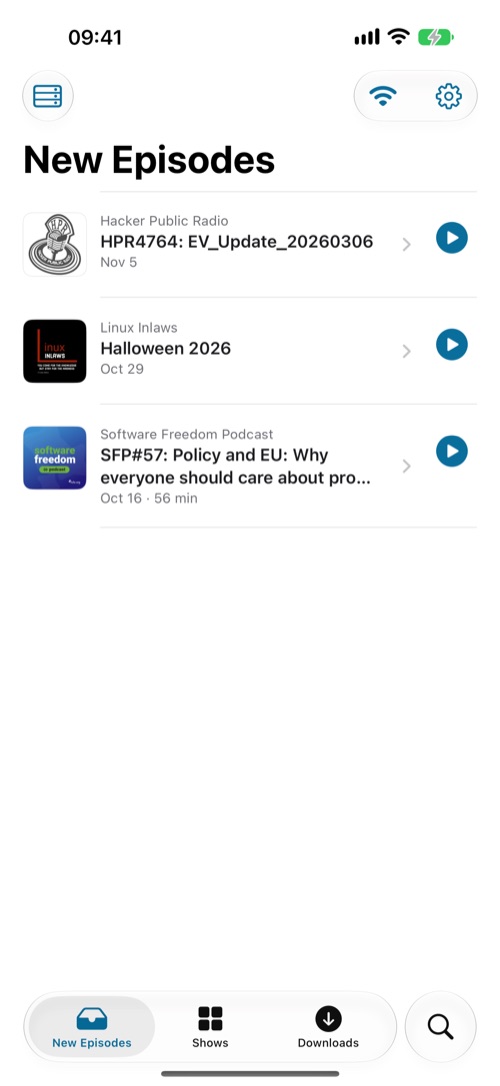
Each row shows the show, the episode’s title, its date and its length (or the time left, or Played). A small arrow means the episode is downloaded, a ring that it is downloading, and the Up Next symbol that it is in Up Next. Tap the row to open the episode’s page, or the round play button to play it right away. Tap the play button of the episode that is playing to pause it.
An episode leaves New Episodes when you finish it, mark it played, or dismiss it.
Pull the list down to check every feed and server for new episodes. The app also checks by itself when it opens and, if iOS allows, every hour or so in the background.
If you don’t want a show’s new episodes here, turn off Show in New Episodes in its Show Settings.
Swipes
- Swipe right: Played (or Unplayed if it is already played).
- Swipe left: Dismiss, which takes the episode out of New Episodes without marking it played.
Touch and hold
Touch and hold an episode for its menu:
| Item | What it does |
|---|---|
| Play | Plays it now. |
| Mark as Played / Mark as Unplayed | Marks it, without playing. |
| Play Next | Puts it first in Up Next. |
| Play Later | Puts it last in Up Next. |
| Remove from Up Next | Shown instead of the two above when it is already queued. |
| Download | Downloads it to the iPhone. |
| Cancel Download | While it downloads. |
| Remove Download | Deletes the downloaded file; the episode stays. |
| Try the Download Again | After a failed download. |
| Remove from New Episodes | The same as the Dismiss swipe. |
The same swipe right and menu (without the New Episodes items) work on a show’s page and in search results too.
The toolbar
- The Wi-Fi button on the right turns Offline Mode on and off. While it is on, or when there is no network, a line at the top says Offline Mode is on or No network, and episodes that are not on the iPhone are greyed out.
- The gear opens Settings.
- With more than one source, a server button on the left chooses what New Episodes and Shows show: All Sources, This Device, or one server (an Audiobookshelf server with several podcast libraries is listed once per library). The choice is remembered.
When it is empty
No New Episodes means nothing new has come out since you followed your shows, or you have listened to all of it. Follow more shows in Discover.