

The player
The mini player
While something is playing, a bar sits above the tab bar with the cover, title and artist, Play/Pause and Next. A thin line along its top shows how far the song has got; for a song still arriving from the server, the part already downloaded is drawn lighter. Tap the bar to open the full player.
When you open the app again later, the bar shows the song you were listening to with a play symbol. Tap it to play the queue from where you left off.
The full player
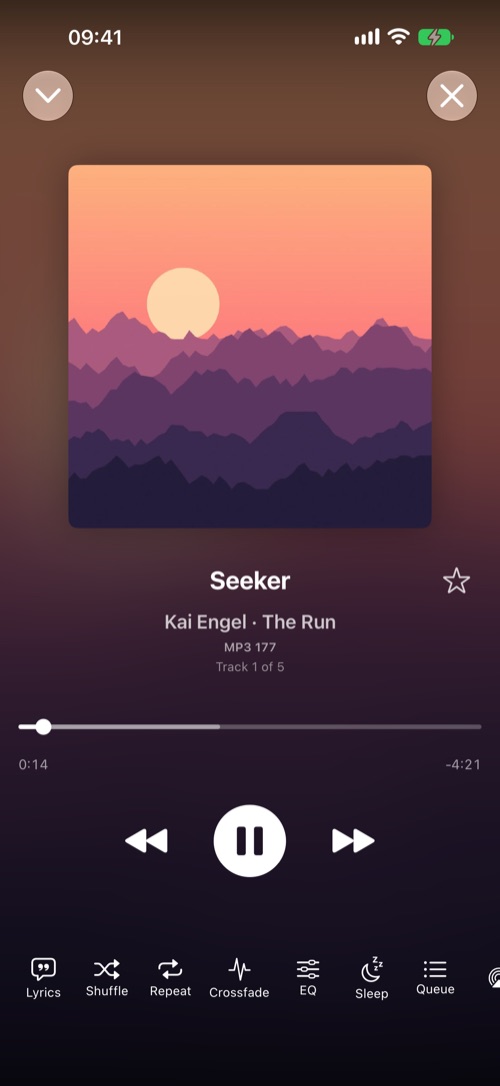
From top to bottom:
- The down arrow at the top left closes the player; the music goes on. The ✕ at the top right stops playback.
- The cover. Swipe it left for the next song, right for the previous one.
- The title (a long one scrolls once), and the star to make the song a favorite.
- The artist and album.
- The format, for example FLAC · 44.1 kHz · 16-bit for lossless or MP3 320 for a lossy file with its bitrate. When volume leveling changes the song’s volume, the change is added, such as +2.5 dB.
- Track 1 of 5: where the song is in the queue. In a concert, Song 2 of 14 instead (see Concerts).
- The position bar. Drag it to move in the song. For a song that is still streaming, the part already downloaded is drawn lighter.
- Previous, Play/Pause, Next. More than three seconds into a song, Previous goes back to its start; within the first three seconds it goes to the song before.
Songs play gapless by default: one runs into the next with no silence, so live and classical albums flow as recorded. A song starts playing while it is still arriving; if it can’t be played, the reason is shown under the controls.
The tools row
Under the controls is a row of tools. If it doesn’t fit, scroll it sideways.
| Tool | What it does |
|---|---|
| Lyrics | Opens the song’s lyrics. |
| Shuffle | Shuffles the queue, or puts it back in order. |
| Repeat | Off, then repeat all, then repeat one song, then off again. |
| Crossfade | Turns crossfade on or off and sets its length. |
| EQ | Opens the equalizer. |
| Sleep | Opens the sleep timer. |
| Queue | Opens the queue. |
| Identify | own.audio with Identify, on your own songs: Identify… and Undo Identify… for the song playing. See Identify. |
| AirPlay | Picks where the sound plays: the iPhone, headphones, an AirPlay speaker. |
A tool that is on (shuffle, repeat, crossfade, the equalizer, a running sleep timer) is drawn in the accent color.
Lyrics
Lyrics shows the words of the song playing. Synced lyrics follow the music: the current line is bright and kept in the middle, and a tap on a line jumps to it. Plain lyrics just scroll.
When the server has more than one version (another language, or both synced and plain), pick it at the top left. If there are none, the app says “The server has no lyrics for this song.” Servers read lyrics from the file’s tags or from an .lrc file next to it. On Subsonic servers it depends on the server whether it gives lyrics at all.
The queue
Queue lists:
- Now Playing;
- Up Next: tap a song to jump to it. Tap Edit to drag songs into another order, and swipe a song to remove it;
- Played: what played before, grayed; tap one to go back to it.
To add to the queue from anywhere, use Play Next or Add to Queue in a song’s or an album’s menu. Starting an album, a playlist or a list of songs replaces the queue.
Crossfade
Crossfade makes songs fade into each other near the end instead of playing back to back. With it on, Fade sets the length, from 1 to 12 seconds (4 by default). It is off by default. The same setting is in Settings.
Equalizer
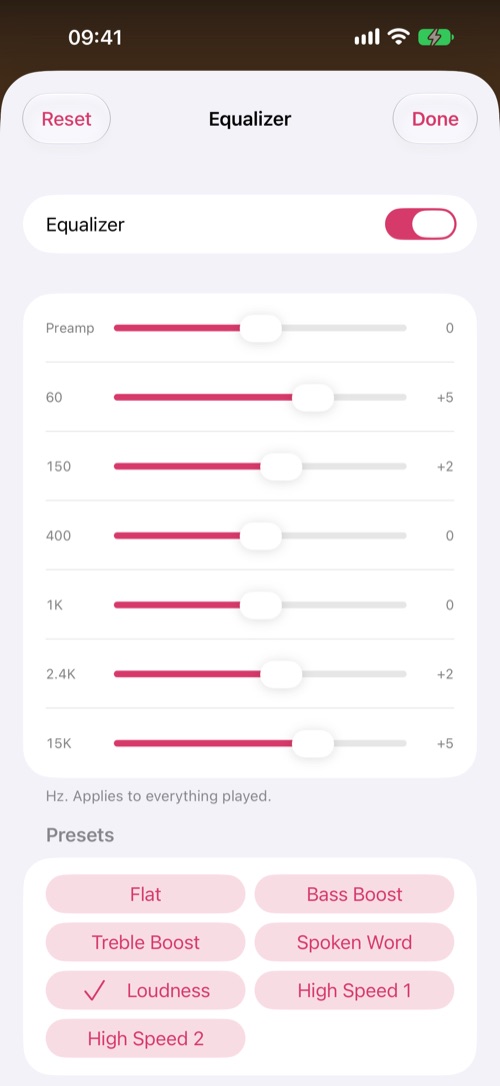
A six-band equalizer: Preamp and bands at 60, 150, 400 Hz, 1K, 2.4K and 15K, each from −12 to +12 dB. Turn it on with Equalizer at the top. It applies to everything played.
Presets: Flat, Bass Boost, Treble Boost, Spoken Word, Loudness, High Speed 1 and High Speed 2. The chosen one has a checkmark; once you move a slider yourself, the header says Custom. Reset puts everything back to flat. It is off by default.
Sleep timer
Sleep stops playback after 5 minutes, 15 minutes, 30 minutes, 45 minutes or 60 minutes, or at the End of Track. While it runs, the cover shows the time left (or “End of track”), and the sleep timer shows Time remaining, +10 minutes and Turn Off Sleep Timer.
Volume leveling
Volume leveling uses the ReplayGain values in your files, so a quiet song and a loud one play at a similar volume. On Jellyfin it uses the loudness Jellyfin measured. It is set in Settings: Same for Every Song (the default), Same for Every Album, which keeps an album’s own quiet and loud moments, or Off. Songs without the values play unchanged.