

Library
Home
Home is the tab the app opens on.
- Shuffle All plays a random hundred songs from the whole library. The server picks them, so it works the same for any size of library.
- Recently Played and Recently Added: albums in rows you scroll sideways. Tap a title to see the full list.
- Playlists: your playlists, in the same kind of row.
At the top: the server menu (with more than one server, see Getting started), the Offline Mode button (the Wi-Fi symbol, see Downloads and offline) and Settings (the gear).
Pull down to refresh. Offline, Home shows Downloaded Albums instead of what was added, and Shuffle All shuffles what is downloaded.
The Library tab
On iPhone, Library is a grid of sections: Artists, Albums, Songs, Genres, Favorites, and Concerts when the server keeps them. The arrow at the top right opens Downloads. On an own.audio server that offers it, Identify Library is under the grid (see Identify).
On iPad the sections are a sidebar; see iPad.
Artists
Every artist, with a picture where the server has one and the number of albums. Use Filter Artists at the top to narrow the list.
Albums
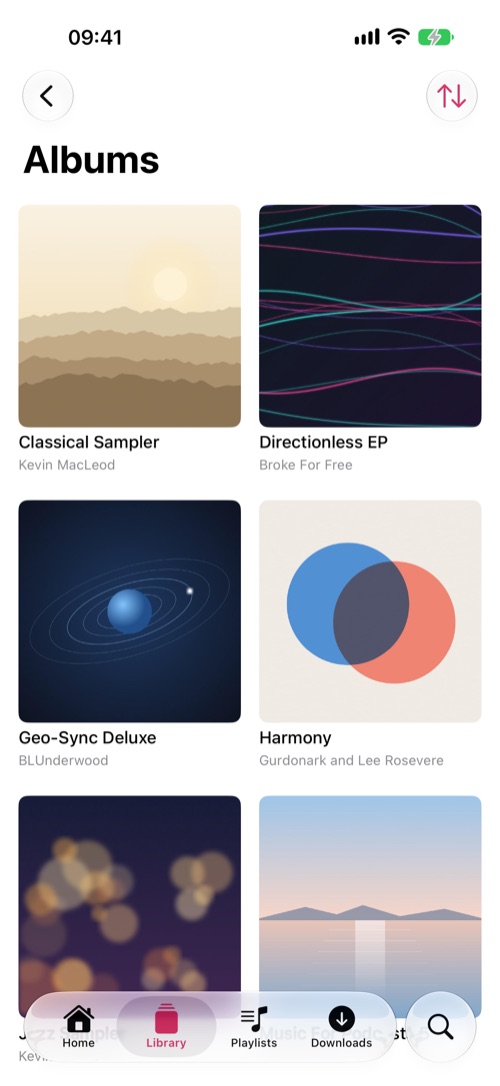
Every album as a grid of covers. The sort button at the top right orders them:
- By Title, By Artist
- Recently Added, Recently Played, Most Played
- Random
- Favorites
- Top Rated, on servers with ratings (own.audio and Subsonic, not Jellyfin)
More albums load as you scroll.
Songs
Every song, loaded a page at a time as you scroll, with Play and Shuffle at the top.
Genres
Every genre, with its number of albums and songs. A genre opens its albums, and Shuffle plays up to a hundred random songs of that genre.
Favorites
What you starred, split into Songs, Albums and Artists. See Favorites and ratings.
Concerts (own.audio)
A concert is a whole show recorded as one file, with a chapter where each song starts. Concerts shows them, newest first, on own.audio servers that keep them; on other servers the section isn’t there.
When a concert plays, the player shows Song 2 of 14 (for example) under the title. Tap it for the list of songs in the show and tap one to jump there; Previous and Next move between the songs too. A concert starts again where you left it, on any device signed in to the same account, unless you were in its last half minute.
If the concert is yours, Edit in that list opens Edit Songs: change a song’s name or start time (written as 9:26 or 1:02:03), set a start to where the player is now with the arrow (Start Here), Add a Song Here, or swipe to delete one. Save stores them on the server, which keeps them from then on, whatever the file says.
An album
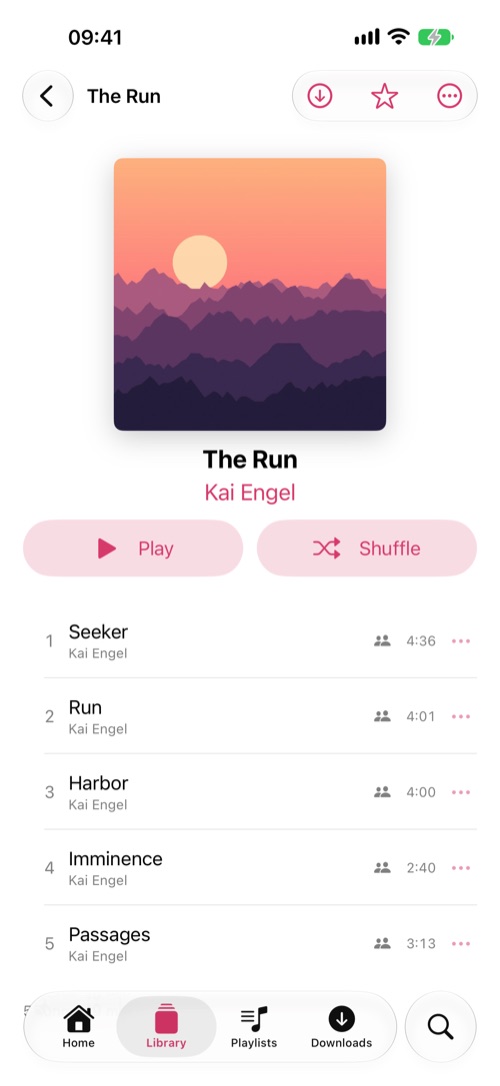
The album page shows the cover, title, artist (tap it to open the artist) and year, then Play and Shuffle and the songs. An album with several discs is split into Disc 1, Disc 2 and so on. At the bottom: the number of songs and the running time.
At the top right:
- Download (the arrow): downloads the album. While it downloads it shows how far it got; once done, a check. Tap the check for Remove Download.
- The star: Favorite Album or Unfavorite Album.
- More (the circle with three dots):
- Play Next and Add to Queue
- Rate, on servers with ratings
- Instant Mix (Jellyfin): songs like this album, picked by the server
- Add Album to Playlist…
- Choose Album Cover… (own.audio, when songs on the album are yours): pick a picture from your photos; the app makes it smaller and sends it to the server
- Share My Songs with the Family or Stop Sharing My Songs (own.audio with a family): your own songs on the album, all at once. See Family
- Identify Album (own.audio with Identify). See Identify
An artist
The artist page shows the artist’s picture and name, Play and Shuffle for all their albums, and the albums as a grid. At the top right: the star (Favorite Artist) and, on own.audio, More with Choose Picture… and Identify Artist.
Songs in a list
Each song row shows its number (or cover), title, artist and length. Small icons after the title:
- people: shared with the family (own.audio);
- a filled arrow: downloaded;
- a star: a favorite.
The song playing has a speaker instead of its number. Tap a song to play it and the rest of the list after it.
A song’s menu
Tap ⋯ on the right of a song, or press and hold the song:
- Play Next: after the song playing now.
- Add to Queue: at the end of the queue.
- Favorite or Unfavorite.
- Rate, on servers with ratings. See Favorites and ratings.
- Instant Mix (Jellyfin, online).
- Add to Playlist…: one of your playlists, or New Playlist….
- Choose Cover… (own.audio, your own songs).
- Share with the Family or Stop Sharing (own.audio, your own songs, with a family).
- Identify… and Undo Identify… (own.audio with Identify, your own songs). See Identify.
- Download or Remove Download.
- Remove from Playlist, in a playlist of yours.
Actions that need the server, such as sharing or choosing a cover, are hidden while you are offline. A favorite, a rating or songs added to a playlist while offline are kept and sent when the server can be reached again.