

Getting started
The first screen
The first screen offers two ways in: an account on own.audio’s hosted service, or a server of your own.
No server? Use own.audio
The card at the top is for someone without a server. own.audio keeps your music for you.
- Create an own.audio Account opens a sheet with Continue with Apple and Continue with Google at the top: either makes the account on first use. Or fill in Your Name, Email and a Password of at least 12 characters (a few words are fine), then Create Account. The app signs in to the new account straight away. own.audio emails you a link to confirm the address.
- Sign In opens the same sheet for an account you already have: Apple, Google, or your Email and Password.
- Try the Demo Library signs in to a shared own.audio server with sample music, with no account needed. The server is called own.audio demo in the app. Remove it in Settings when you add your own.
Both sheets show Server: own.audio and can’t be pointed anywhere else; for another own.audio server, use the server form.
Or connect your own server
For a server you run yourself, fill in:
- Server address: for example
music.example.com, or an address on your home network such as192.168.1.10:4533. Withouthttp://orhttps://, the app tries https first and then http, so a server at home works as you type it. - Username and Password. For own.audio, use your account’s email and password. Jellyfin allows accounts with no password, so the password can be empty.
- Name (optional): what the server is called in the app.
Then tap Connect. The app finds out by itself whether the server is own.audio, Subsonic or Jellyfin, and checks the sign-in before it saves anything.
Your sign-in stays in the device’s Keychain. A Subsonic server gets a one-time token made from the password with each request; Jellyfin and own.audio give the app a token, and the password is not kept.
Sign in with Apple or Google
When the address you typed is an own.audio server that takes Apple or Google sign-in, the buttons Continue with Apple and Continue with Google appear under the form, with the note “Or sign in with the Apple or Google account you use on this own.audio server.” Use the same way you signed up.
Two-factor sign-in
If your own.audio account has two-factor sign-in on, the app asks for a second step after the password: Two-Factor Sign-In. Enter the code your authenticator app shows, or one of your recovery codes, and tap Sign In.
Quick Connect (Jellyfin)
Sign In with Quick Connect (Jellyfin) signs in without typing a password here. Type the server address, tap the button, and the app shows a code. Enter it in a Jellyfin app where you are already signed in, under Quick Connect in your user settings. The app waits (“Waiting for approval…”) and signs in once you approve. If the server has Quick Connect turned off, the app says so; an administrator can turn it on in the Jellyfin dashboard.
The tabs
Once a server is added, the app has five tabs:
- Home: Shuffle All, what you played recently, what was added, and your playlists. See Library.
- Library: artists, albums, songs, genres, favorites, and concerts where the server has them. See Library.
- Playlists: see Playlists.
- Downloads: what is on the phone. See Downloads and offline.
- Search: see Search.
While something plays, the mini player sits above the tab bar. Settings is the gear at the top right of Home.
Several servers
You can add as many servers as you like: in Settings, under Servers, tap Add a Server. The form is the same as on the first screen, plus a hint for Quick Connect.
The library shows one server at a time, the selected one, marked with a checkmark in the server list. To switch:
- on Home, tap the server menu at the top left (it appears once you have more than one server) and pick another;
- or open the server in Settings and tap Use This Server.
Switching starts every tab afresh with the other server’s library. What is already in the queue keeps playing, whichever server it came from.
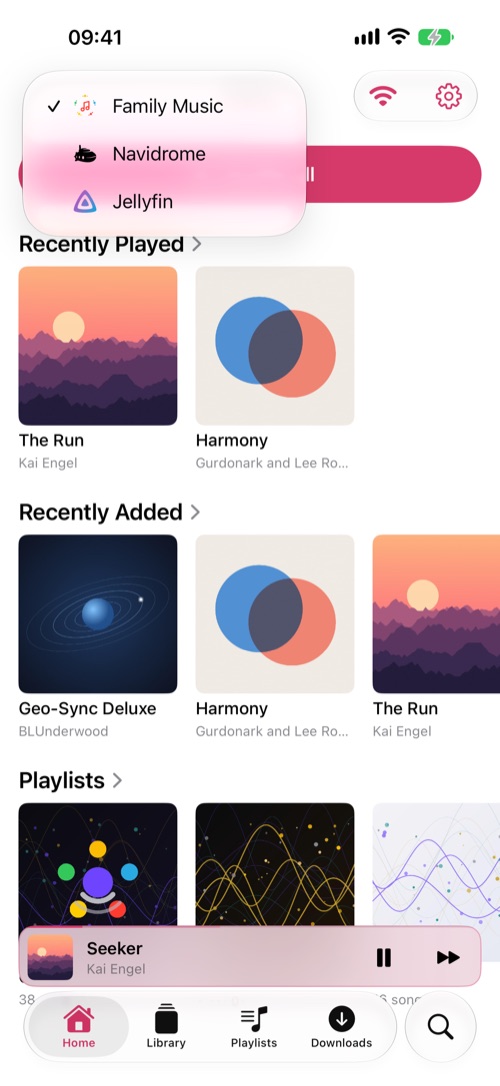
Each server in the list shows its kind (own.audio, Subsonic or Jellyfin) and the account you signed in with. Swipe a server to Remove it. Removing a server deletes its downloads from the phone; nothing changes on the server.
The server’s page
Tap a server in Settings to open its page.
Status. The top line says whether the app is connected and how: Connected · Home network, Connected · VPN or Connected · Internet, with the address in use. Check Now asks the server again and says what it found: it answers and accepts the sign-in, it refuses the sign-in, or no address answers.
Account. “Signed in as” your username. Sign In Again asks for the password again (or Apple or Google, if that is how you signed up), for example after you changed the password. If the server stopped accepting the sign-in, the page says “The server no longer accepts this sign-in.” Signing in again keeps your downloads and the library on the phone.
On own.audio, Delete Account… deletes your account on that server for good, with everything you added to it: music, audiobooks, podcasts, playlists and your listening history. What others in your family added stays with them. The app asks before it does anything.
own.audio only: Family, Devices and Listening. See Family.
Server, Talks Through and Name. The kind of server, and how the app talks to it: own.audio · own API, own.audio · Subsonic API, Subsonic API or Jellyfin API. An own.audio server that shows Subsonic API was added before the app spoke own.audio’s own API, or is an older server; sign in again to switch, and the library on the phone then stays up to date within seconds. Tap Name to rename the server.
Music Library… (Jellyfin). A Jellyfin server can hold several music libraries. Pick one, or All Music Libraries.
Identify Library (own.audio). Shown when the server offers it. See Identify.
Library on This Device. The app keeps a list of everything on the server, without the music itself, so albums open and the library can be browsed offline. It shows the number of songs and albums and when it was last updated. It is updated in the background on Wi-Fi; Update Now does it at once.
Remove Server, at the bottom.
Addresses
A server can have more than one address: one on your home network, one through a VPN such as Tailscale, and a public one. Under Addresses, each address shows where it reaches the server (Home network, VPN or Internet) and where it came from (added with the server, from the server, or added by you).
- Add Address adds another one, for example
http://192.168.1.20:4533. - Swipe an address, or open its menu, to remove it. The address you added the server with can’t be removed.
Under Connection, Automatic lets the app pick: on each network it uses the fastest address that answers as this server, and remembers which one worked where. You can also pick one address to always use.
own.audio and Jellyfin servers tell the app their addresses and an identity, so an address that answers as a different server is never used. Subsonic servers don’t say which addresses they have, so add them yourself; the app checks each one with your sign-in.