

Identify (own.audio)
On an own.audio server that offers it, the app can have the server compare your songs with MusicBrainz and put their titles, albums and artists right. Nothing changes until you accept it, your files never change, and anything can be undone. On other servers, and on own.audio servers without it, none of this is shown.
You can identify only your own songs: what you added to the library, not what someone in your family shared with you.
Identify the whole library
Open Identify Library: under the grid in the Library tab on iPhone, or on the server’s page in Settings.
- If the server has several music folders, pick Whole library or one folder under Identify.
- Tap Identify Whole Library (or Identify This Folder).
The server works in the background. MusicBrainz answers about one album a second, so a large library takes a while. If MusicBrainz is busy, the run waits and carries on by itself.
On a server that charges for identifying, the app first says how many songs there are and what it can cost at most, and asks you to Start. You pay only for songs MusicBrainz finds, once per song, and correcting them later is free.
Runs lists every run with its state (Queued, Identifying, Waiting, Ready, Failed) and counts: sure, to review, not found, accepted.
Reviewing a run
Open a run to see what it proposes, grouped by album, under four tabs:
- To Review: matches to look at one by one;
- Sure: matches the server is sure of. Accept … Sure Matches takes them all at once;
- Not Found;
- Done: what you accepted or rejected.
For a whole album, its menu has Accept All … Songs and Other Edition…: the other releases of the album the server found, with how many of their tracks matched, to match the whole album to one of them. Where the server can, you can also correct the Album or Artist and Search MusicBrainz again.
For one song, swipe it to Accept or Reject, or Undo what you decided. Its menu also has Other Recording…. A song can carry a note on why it needs a look, such as Weak match, Other album, Other artist, Not on this edition or Two files, one track.
The run’s More menu has Undo Run, which puts every song this run identified back the way it was, and Delete Run, which removes the run and its proposals; what you accepted stays.
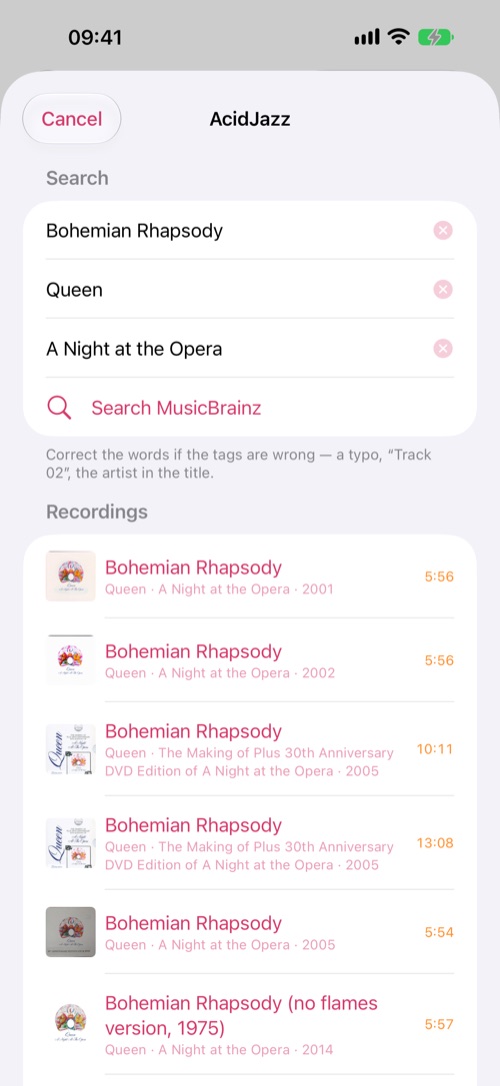
Identify one song, album or artist
- A song: Identify… in its menu, or Identify in the player’s tools row for the song playing. You get a search with the song’s title, artist and album filled in. Correct the words if the tags are wrong (a typo, “Track 02”, the artist in the title) and tap Search MusicBrainz. Pick the right one under Recordings, or paste a link or ID from musicbrainz.org under Or Paste a Link and tap Use This Recording.
- An album: Identify Album in the album’s More menu.
- An artist: Identify Artist in the artist’s More menu.
An album or artist starts a run for just those songs, which you review as above.
Undo
Undo Identify… in a song’s menu (or in the player’s Identify menu) puts the song back as its file says, with no MusicBrainz match.