

The player
Tap the mini player at the bottom of the screen to open the full player.
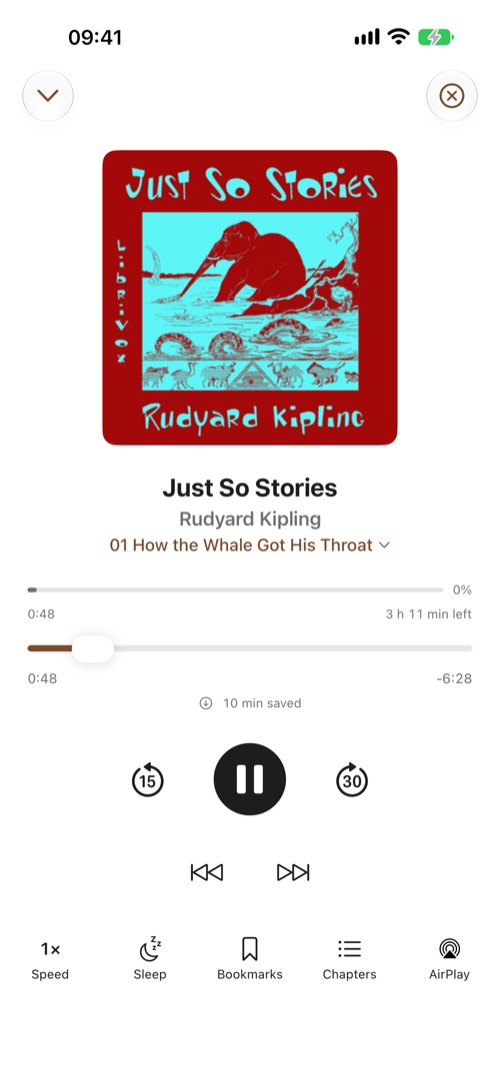
What’s on it
From the top:
- Close (the down arrow, top left) hides the player; the book keeps playing in the mini player.
- Stop (the cross, top right) stops playback and closes the player.
- The cover, title and author. While the sleep timer runs, the cover shows how long is left in its corner.
- The current chapter’s name. Tap it to open the chapter list.
- A thin bar for the whole book, with the percentage, the time played and the time left at the current speed (“3 h 11 min left”).
- A slider for the current chapter, with the time into it and the time left in it. Drag it to move within the chapter.
- “10 min saved”: while a book streams, the app keeps the next minutes on the iPhone, so a tunnel or a gap in the signal goes unheard. This line says how much is kept. If the signal is gone for longer, it says No signal — waiting and plays on by itself when the signal returns.
- Skip back and skip forward, with play/pause between them. The numbers on the buttons are your intervals (15 and 30 seconds unless you change them in Settings). With a keyboard, Space plays or pauses and ⌘← / ⌘→ skip (see the keyboard).
- Previous chapter and next chapter. On a book without chapter marks, they step by file.
- The tools: Speed, Sleep, Bookmarks, Chapters and AirPlay.
Speed
Tap Speed (it shows the current speed, such as 1×). The speed sheet has – and + buttons that step by 0.05, and quick buttons for 0.75×, 1×, 1.25×, 1.5×, 1.75×, 2×, 2.5× and 3×. The speed goes from 0.5× to 3×.
The voice keeps its pitch at any speed. Each book remembers its own speed; a book you haven’t played yet starts at Speed for New Books from Settings. The Speed tool is tinted when the speed isn’t 1×.
Smart rewind
When you resume after a pause, the app goes back a little so you pick up the thread:
| Paused for | Goes back |
|---|---|
| under 10 seconds | nothing |
| under a minute | 3 seconds |
| under 10 minutes | 10 seconds |
| under an hour | 20 seconds |
| an hour or more | 30 seconds |
It is on by default; turn it off with Smart Rewind in Settings.
Chapters
Chapters (or a tap on the chapter’s name) lists the book’s chapters with their lengths; the one playing has a speaker icon, and the list opens scrolled to it. Tap a chapter to play from its start.
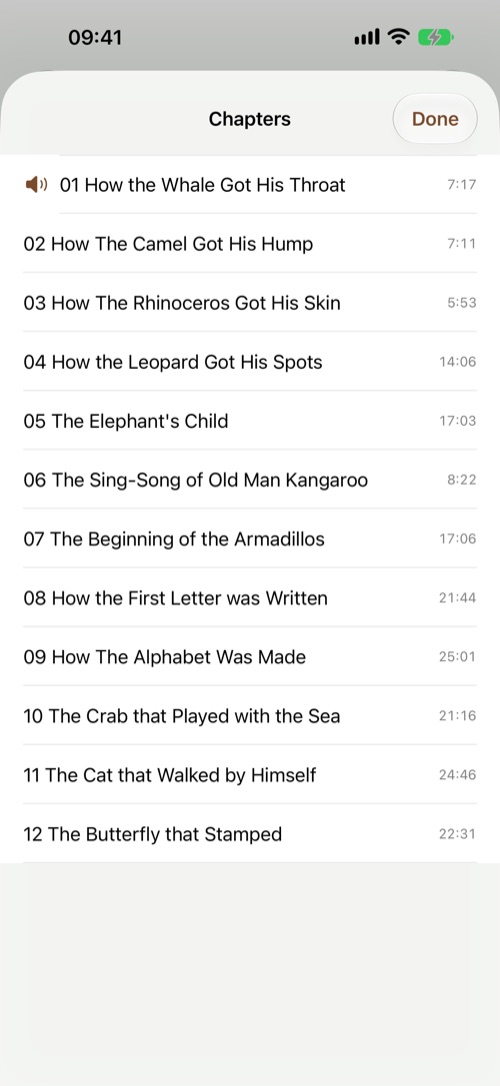
Chapters come from the server. When the server has none, the app reads the chapter marks stored in the audio files; when there are none there either, each file is a chapter.
Bookmarks
Bookmarks lists the bookmarks in this book. Tap Add Bookmark at 12:34 to mark where you are; you can give it a label or leave it empty. Tap a bookmark to play from there. Swipe one, or touch and hold it (right-click on a Mac), to Rename or Delete it.
Bookmarks are kept on your server, so you see them on your other devices too. They need a connection to the server.
Sleep timer
Sleep opens the sleep timer:
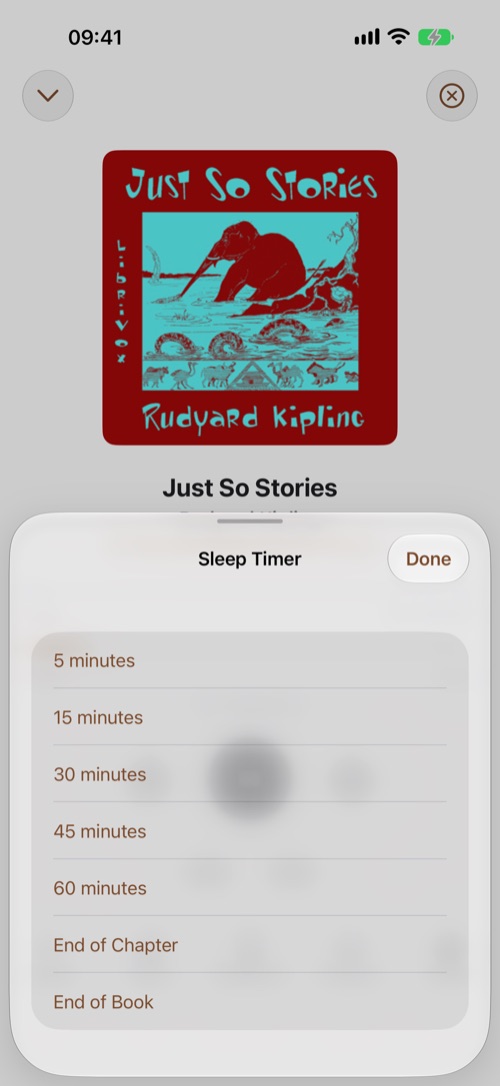
- 5 minutes, 15 minutes, 30 minutes, 45 minutes, 60 minutes
- End of Chapter: stops when the current chapter ends.
- End of Book
While a timer runs, the sheet shows Stops in with the time left, Add 10 Minutes, and Turn Off. The Sleep tool is tinted while a timer is set.
AirPlay
AirPlay opens the system’s list of speakers and TVs to play to.
Your position
The app saves your position on the iPhone first and then sends it to the server, so a lost signal never loses your place; positions saved offline are sent when the connection returns. That position follows you to your other devices and apps that use the same server.
Unplugging headphones pauses the book. A phone call pauses it, and it goes on afterwards when iOS says it may.