

Downloads and offline
Downloading a book
Tap the download button beside Play on a book’s page, or the download arrow on a series, an author’s or narrator’s list, or a collection to download every book in it.
Downloads go on in the background, also when you leave the app, and pick up where they stopped if they are interrupted. By default they wait for Wi-Fi (Download on Wi-Fi Only in Settings).
Downloaded books are kept in the app’s own storage on the iPhone, not in iCloud backups (they can always be downloaded again). They are removed when you delete the app or remove their server.
The Downloads tab
Downloads lists what is on this iPhone, from every server, newest first. Each row shows the cover, title, author, the server it came from and its size, or the download’s progress.
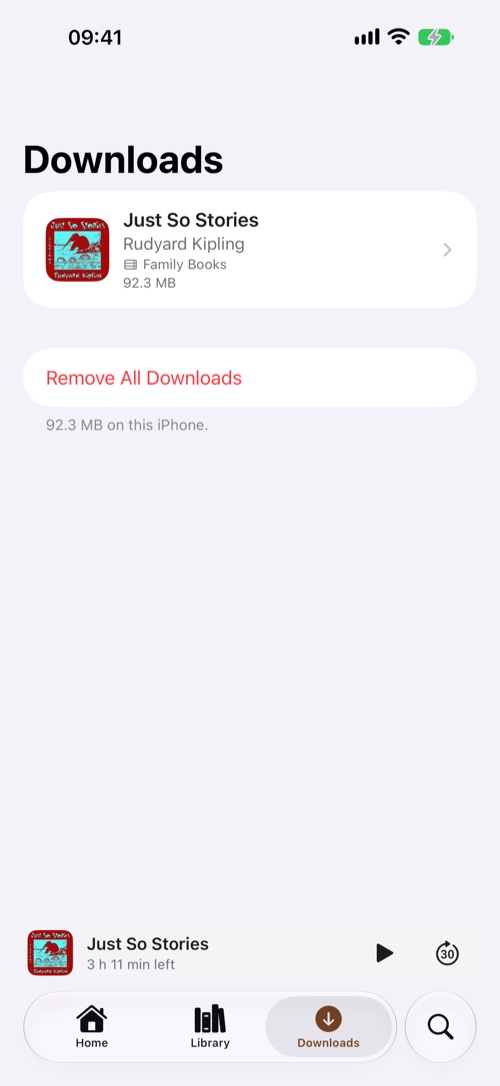
- With more than one server, the books are grouped by server.
- While downloads run, Downloading shows how many. Failed ones can be tried again together with Retry 3 Failed.
- Swipe a book to Remove its download.
- Remove All Downloads removes them all, after asking. The total size is under it.
Settings also has a Downloads row with the total size, which opens the same list.
Storage limit
Keep at Most in Settings sets a limit: No Limit (the default), 1 GB, 2 GB, 5 GB or 10 GB. Over the limit, the app removes finished books first, then the books not played for longest. It never removes the book that is playing.
Offline mode
With no network, the app goes offline by itself. You can also turn Offline Mode on yourself, with the Wi-Fi button at the top of Home or in Settings. Offline, the app asks nothing of your servers and shows and plays only what is on the iPhone.
While offline, a line above the mini player says so: No network · downloaded books only, or Offline Mode · downloaded books only when you turned it on. Then it has a Turn Off button.
Your positions are saved on the iPhone while offline and sent to the server when you are back online.
The whole library offline (own.audio)
The app keeps a list of everything on an own.audio server, without the audio, so the library can be browsed with no signal. With Whole Library When Offline on in Settings, the Library shows the whole own.audio library when offline, with the books you haven’t downloaded greyed out. Only downloaded books play. The line above the mini player then says only downloaded books play.
This setting appears only when you have an own.audio server. Audiobookshelf libraries show only their downloads when offline.
Mobile data
On Mobile Data in Settings decides what happens without Wi-Fi:
- Original (default): streams the original files.
- Saver: asks the server for a smaller stream (64 kbps, plenty for speech) where it makes one.
- Downloaded Only: on mobile data the app behaves as if offline and plays only what is on the iPhone.
On a Mac there is no mobile data, so Settings doesn’t show On Mobile Data or Download on Wi-Fi Only.
Keeping ahead while streaming
While a book streams, its next minutes are kept on the iPhone (mobile data too), so short gaps in the signal go unheard. Keep Ahead in Settings sets how many: 5, 10 (default) or 15 minutes. With Low Data Mode on, it is 5 minutes. Saver streams are not kept ahead.