

Home
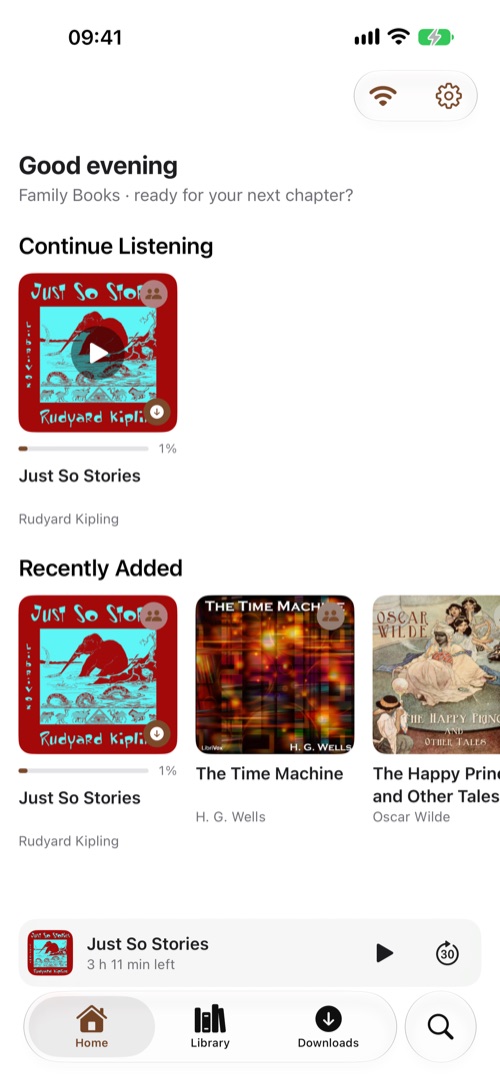
The app opens on Home: a greeting, the selected server’s name (“Family Books · ready for your next chapter?”), and the server’s shelves.
The shelves
Each shelf scrolls sideways. Which shelves you see depends on the server:
- own.audio: Continue Listening (books you have started, the most recent first), Recently Added and Listen Again (books you have finished).
- Audiobookshelf: the shelves your server arranges for you, with the names it gives them, for example Continue Listening, Recently Added, series and authors.
On Continue Listening, a tap on a cover plays the book straight away, from where you left off. To open the book’s page instead, touch and hold the cover and choose Show Book. On the other shelves, a tap opens the book’s page, the series or the author.
The covers carry small badges:
- a progress bar with the percentage under a book you have started,
- a people icon in the top right corner for a book shared with your family (own.audio),
- a heart in the top left corner for a favorite (own.audio),
- a download arrow in the bottom right corner for a book on this iPhone, or a ring while it downloads.
Pull down to reload the shelves. Pausing a book also moves it up Continue Listening.
When the app is offline, Home shows only what is on this iPhone: Continue Listening with the downloaded books you have started, and On This Device with every downloaded book.
The buttons at the top
- Server menu (top left): appears when you have more than one server, or an Audiobookshelf account with more than one book library. It switches what Home and the Library show.
- Offline Mode (the Wi-Fi symbol): turns offline mode on or off. See Downloads and offline.
- Settings (the gear): opens Settings.
The mini player
While a book plays, a bar sits above the tabs on every screen: the cover, the title, and the time left at the current speed. Its buttons are play/pause and skip forward. A thin line along its bottom edge shows how far into the book you are. Tap the bar to open the full player.
After you quit and reopen the app, the bar shows the book you were last listening to, with a play button. Tap it to go on from where you left off.
“Continue from another device?”
On own.audio, the server remembers where each of your devices left off. If you start a book on this iPhone and another device of yours has got noticeably further (or less far) since, the app asks which place to use, for example:
- Continue from iPad (1:02:07)
- Keep this device’s position (48:10)
Audiobookshelf keeps one position per book; the app starts from the newer one without asking.